
Let’s be honest, not everyone who ends up in your video actually agreed to be in it. Maybe you filmed a vlog at a crowded market, recorded a street performance or shot a clip at your kid’s school event. Whatever the situation is, blurring out faces is one of those things that can save you from a privacy headache later on.
The good news is that You don’t need fancy desktop software or a paid subscription to get this done. CapCut Pro Apk, the free video editing app that’s become a go-to for content creators around the world, actually has a solid face blur feature built right into it. And once you know where to look, it’s surprisingly simple. Let’s walk through the whole thing.
Why Blurring Faces in Videos Actually Matters
Before we get into the how, let’s quickly talk about the why because this isn’t just a nice-to-have. Privacy laws in many countries require you to get consent before showing someone’s identifiable image in public content. Even outside legal requirements, it’s just the respectful thing to do. Children especially should never appear in public-facing videos without permission from their guardians.
Beyond privacy, there are creative reasons too. You might want to hide someone’s identity for storytelling purposes, blur out a client’s face in a testimonial video or simply keep background strangers from distracting viewers. Whatever your reason is CapCut makes it doable without switching to a computer.
What You’ll Need Before You Start
Nothing complicated here. Just make sure you have:
That’s genuinely it. No account required for basic features, no watermark on exports for most versions.
How to Blur Faces Step-by-Step
Step 1: Open CapCut and Import Your Video
When you open CapCut, you’ll land on the home screen with a big “New Project” button in the middle. Tap it.
Your phone’s media library will pop up. Find the video you want to work on and select it. Hit “Add” in the bottom right corner and CapCut will load it into the editing timeline. Give it a second, if your video is long or high resolution then it might take a moment to process. That’s completely normal.
Step 2: Find the Effects Section
Here’s where people sometimes get confused, so pay attention. Once your video is loaded in the timeline, look at the toolbar at the bottom of the screen. You’ll see options like Trim, Split, Audio, Text, Effects, Filters, and more.
To blur a face, you have two main methods in CapCut:
Tap on “Effects” in the bottom toolbar. Then look for the “Video Effects” section. Inside, you’ll find a “Blur” category. There are different blur styles like mosaic, pixelate and frosted glass etc. pick whichever looks right for your situation.
Some versions of CapCut have a “Retouch” option which includes auto face detection. This is honestly the smarter method when you’re dealing with a human face because CapCut can automatically track the face as it moves through the video.
If you see a “Face” or “Beauty” section under Retouch, check if there’s a blur or mosaic option specifically for detected faces, it’s a game changer for moving subjects.
Step 3: Apply the Blur Effect
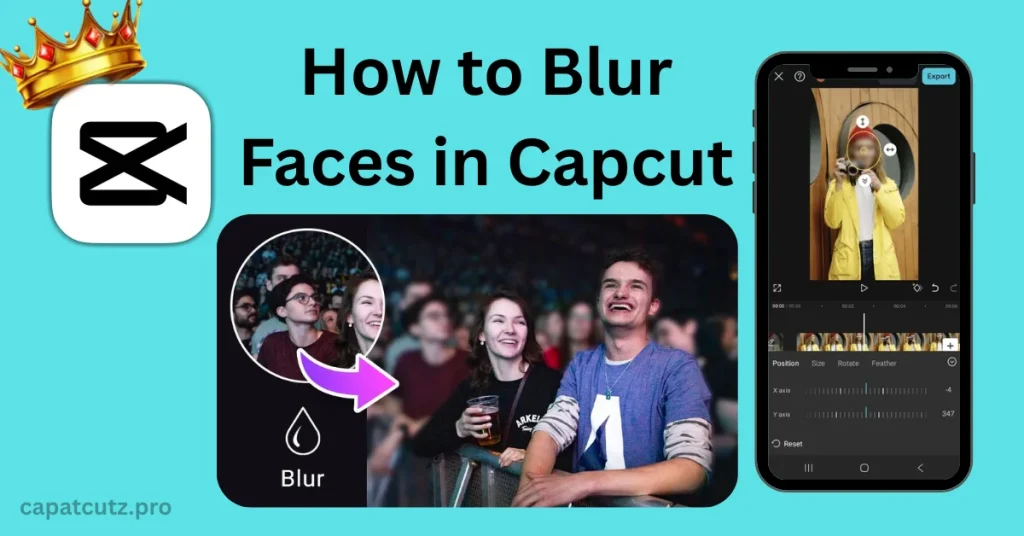
Once you’ve selected your blur style, drag it onto the timeline. You’ll see it appear as a separate overlay layer. Now tap on that blur layer and look for options to resize and reposition the blur area.
Drag the blur box over the face in your video. You can pinch to resize it, making it bigger or smaller depending on how much of the frame you want to cover.
The tricky part here is that this blur is static, means it stays in one spot. If the person in your video is moving around, you’ll need to use keyframes.
CapCut will scan the video and put a blur directly over detected faces automatically. In many cases, it even tracks the movement. This is the easiest method and works beautifully for close-up shots or interview-style footage.
Step 4: Use Keyframes for Moving Faces
If the person is walking, turning or moving around in the frame then a static blur isn’t going to cut it. It’ll just sit there in the corner looking useless while the face moves around freely.
This is where keyframes come in. Keyframes let you tell CapCut: “At this exact moment in the video, I want the blur to be HERE.” Then at the next keyframe, you move it to where the face has shifted. CapCut smoothly animates the blur between those positions.
Here’s how to set it up:
Repeat this every few frames or whenever the face position changes significantly. Yes, it’s a bit tedious. But for a 10–15 second clip, it’s manageable and produces a really clean result.
Step 5: Adjust Blur Intensity
Not all blurs are created equal. A light blur might still let people make out facial features if they squint hard enough. For true anonymity, you want it heavy.
Tap on your blur effect and look for an intensity slider or strength setting. Push it up until the face is fully unrecognizable. A mosaic blur tends to be more effective for privacy than a smooth gaussian blur because it’s harder to reverse-engineer.
If you’re publishing content for compliance or safety reasons, like journalism or social work then you should always move the cursor on the side of heavier blur.
Step 6: Preview and Export
Before you export, go through the entire video and watch it in playback mode. Look for any moments where the blur drifts off the face, where it’s too small or where a second face appears that you missed.
Make any final adjustments, then hit the Export button. Choose your preferred resolution, 1080p works well for most platforms and let CapCut render the final file. Once done, it’ll save directly to your camera roll, ready to upload wherever you need it.
A Few Tips That’ll Save You Time
Common Mistakes to Avoid
One thing people often get wrong is applying the blur to the wrong layer. CapCut has multiple layers, your main video, audio, effects, stickers or text and if you’re not careful, you might be moving the blur on a completely separate element. Always double-check which layer is selected before you start repositioning.
Another common slip is forgetting to check for faces in the background. You blur the main subject, export it, post it then someone in the comments points out there’s a kid’s face clearly visible in the background three seconds in. Do a thorough check before you finalize anything.
Conclusion
Blurring faces in CapCut isn’t as intimidating as it sounds. Once you’ve done it a couple of times, the whole process from import to export can take under 10 minutes for a short clip. The keyframe method especially becomes second nature pretty quickly.
The bigger lesson here is really about being intentional with your content. Privacy matters, consent matters and taking a few extra minutes to protect someone’s identity is always worth it. CapCut gives you the tools to edit video from almost every aspect do that without needing a film school education or an expensive editing suite.Now go sort out that video, you’ve got everything you need.