
Sometimes a video is already good… but it still feels a bit “quiet.” Like, people watch it, but they don’t get it fast enough. That’s where text helps. A short title, a quick caption, a few words on the beat and suddenly your video has direction. It feels more professional. More intentional. More shareable.
CapCut Pro is one of the most popular free video editing apps for TikTok, Instagram Reels and YouTube Shorts. Text is one of the main reasons creators stick with capcut. You can add titles, subtitles, commentsand animations etc. on mobile, desktop and even in your browser.
This guide shows you how to add text in CapCut, how to style it, how to animate it and how to use auto captions and even auto lyrics for music content. I’ll keep the steps simple and easy.
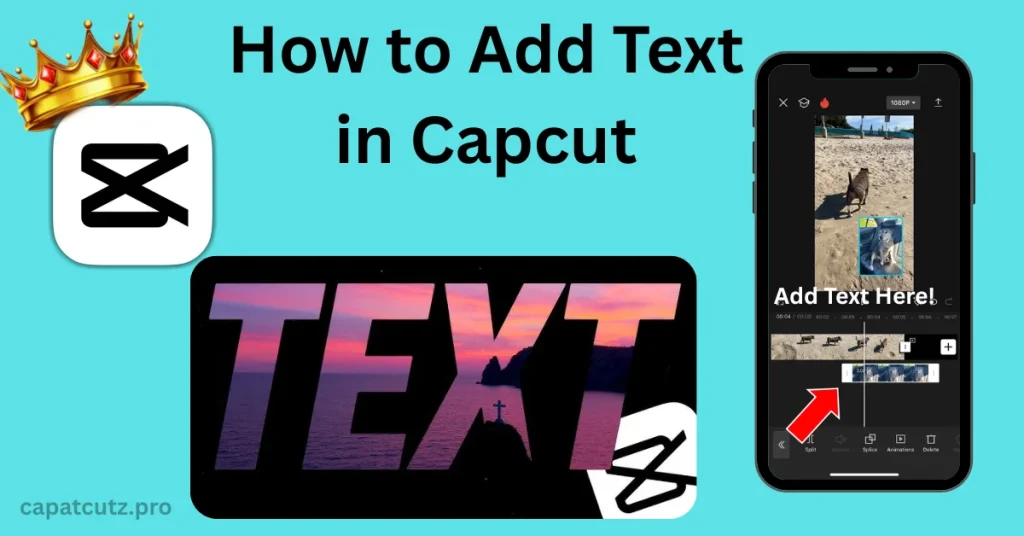
How to add text in CapCut Mobile
CapCut works pretty similarly on iPhone and Android. Once your video is open, you’ll see the video preview, the timeline and the menu bar at the bottom. That bottom bar is where text lives.
Step 1: Open CapCut and import your video
Step 2: Add your text
Step 3: Edit and style the text
Once your text is added, CapCut gives you a bunch of editing tabs. Depending on the version, you’ll see tabs like:
Inside Style, you can change fonts and go deeper into details like color, stroke, background, shadow blur, opacity, spacing, alignment, and bold/italic/underline. You can also add stroke or shadow to make the text readable over bright or busy footage.
Step 4: Animate your text
Tap Animation to make text move. CapCut animations are usually split into:
You can also adjust animation speed with a slider. If you don’t see animations on your device, it’s probably your version or where you’re trying to add the animation from, so check the Text > Animation area, and if it’s missing, try the online editor.
Timing tip
You can adjust how long your text stays visible by dragging the edges of the text segment in the timeline. That one small move fixes a lot of “blink and you miss it” text.
How to add text in CapCut Desktop
Desktop is great when you want more control and cleaner placement.
Step 1: Import and place your video
Step 2: Add a text layer
Step 3: Customize your text
Step 4: Add text animation
How to add text in CapCut Online
CapCut’s web editor is useful when you want to work from a browser and still do titles and captions.
A simple web workflow looks like this:
CapCut Online also supports captions/subtitles tools, including auto-subtitles and auto lyrics for music clips.
Auto captions in CapCut
Captions matter because a lot of people watch without sound. Auto captions help you move faster, and they also make your content more accessible.
How to generate auto captions
Open your project, then go to Text and choose Auto Captions. Choose the source as Audio, Video, or All, then select a caption template and generate captions.
Some extra options include:
Edit for accuracy
After CapCut generates captions, you’ll want to fix timing, spelling and formatting. Auto captions are fast but they still need a human eye.
Auto lyrics in CapCut
If you’re making music content, CapCut also has Auto Lyrics. The steps are simple: Go to Text, choose Auto Lyrics, pick the source (Audio/Video/All), tap Generate, and let CapCut sync lyrics with the clip.
Text templates and effects
If you don’t want to build text style from scratch every time, CapCut includes Text templates. You can choose from template categories like Trending, Social media, Vlog, Travel, News, Game, Retro, Fashion and more. You tap a template, preview it, and apply it to your project.
You can also style your text with:
And if you want to go further, you can also turn text into speech using text-to-speech or using an AI character.
How to make text appear behind a person in CapCut
This is one of those effects that looks like pro editing, but it’s basically smart layering. Follow these steps to make it possible
So it becomes a simple layer stack. Background footage at the bottom, your text in the middle and your subject on top. If you are a complete beginner than you can use this capcut beginners tutorial and learn how to use capcut as a beginner.
Tips for Beginners
These are simple, but they really help:
FAQs
Conclusion
Adding text in CapCut isn’t just about making videos look edited. It’s about making your message land. A title gives context. Captions keep people watching. A clean font and a simple animation can turn an average clip into something that feels intentional.
Start basic as Text > Add text, pick a font, make it readable. Then when you feel ready, play with templates, animations, auto captions and the layering trick that puts text behind a person. You don’t need to do everything at once. Just make the next video a little clearer than the last one. That’s usually what wins.