
Have you ever watched someone else’s edit and thought, “Wow… that transition was smooth” and then you play your own video and it feels like the clips are bumping into each other? Yeah! That awkward jump between scenes is exactly what transitions are meant to fix.
In CapCut Pro Apk, adding transitions is one of the quickest ways to make your video feel more like a real story instead of random clips stitched together. Let’s go step by step and learn how to add transitions in capcut so you can do it on mobile or desktop without stress.
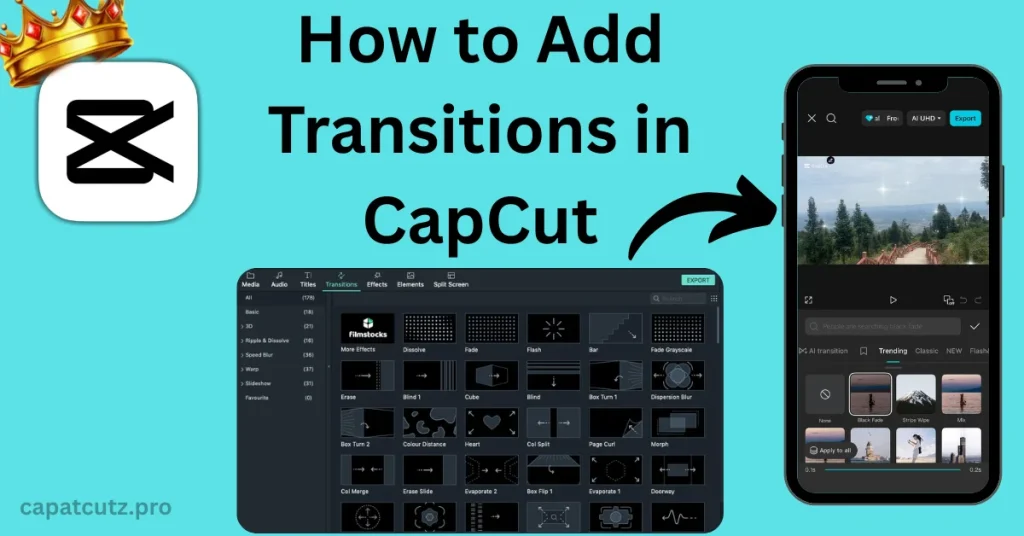
What is a transition in CapCut?
A transition is an effect placed between two clips to help the video shift from one scene to the next in a smoother way. It’s like a “bridge” between shots. Transitions can be simple like a fade, or more dramatic like glitch, zoom, spin or blur. When done right, they make your video flow better. When done badly, they can make the video feel messy and distracting.
Why transitions matter
CapCut transitions are useful because they help with things people actually notice when watching:
Where to find Transitions in CapCut
On the CapCut Mobile App
Go to your timeline and look between two clips. You’ll see a small white icon (a little box with a vertical line). Tap it, and CapCut opens the transitions menu.
On CapCut desktop (PC/Mac)
You’ll find Transitions in the editor often shown in the top-left menu area. Once you open it, you’ll see categories and a search bar to find specific effects.
How to add transitions in CapCut Mobile
You need two or more clips in your project. If there’s only one clip, you won’t see a transition point unless you split the clip (more on that later).
How to add transitions in CapCut on PC
On desktop, you can add transitions by dragging them onto the timeline. Here is the step by step tutorial;
Small note from CapCut workflow: if you see a message like “Create duplicate frames for transition”, you can click OK. It just adds a few frames at the ends so the transition can work properly.
How to adjust the duration of CapCut transitions
You can change transition duration in two simple ways:
But there are the following limits.
So if CapCut won’t let you make it longer, it usually means your clips are too short.
How to apply the same transition to all clips
On mobile
On desktop
How to Replace a Transition in CapCut
If you want to replace a transitions in capcut then you don’t have to delete the old one first.
How to add a Transition inside a single clip on Mobile
If you only have one video clip but still want a transition effect in the middle, do this:
How to add Text Transitions in CapCut
There are two options you can use in order to add text transitions in capcut
Simple and Common
Some guides say there isn’t a true “text transition,” and the closest thing is using text Animation:
Select text → tap the Pen icon → go to Animations → choose an effect → ✅
Desktop Trick with Compound Clips
If you want to apply video-style transitions to text + video together then you have to
Video too Short for Transition Error
If you get this error, two fixes can make your short video eligible for transitions:
If you have other errors while using capcut apk then you can check out our capcut common problems troubleshooting Guide.
How to Use Automatic transitions
CapCut also has a feature called ShortCut, which uses premade templates that already include transitions and animations. You pick your video, let ShortCut analyze it, preview templates, and export. It can be clunky and slow sometimes, but it’s an option if you want something quick.
When Not to Use Transitions
A big beginner mistake is using flashy transitions everywhere. It can overwhelm your video and distract people from what you’re actually saying or showing. Sometimes a simple cut is the cleanest choice.
How to Remove CapCut’s Ending Branding Clip
If CapCut adds an “Ending” branding clip and you don’t want it then Go to the end of the timeline → tap Ending → tap the delete button.
Conclusion
If your edits feel awkward, transitions can fix that fast. In CapCut, it’s simple, all you to do is find the transition icon between clips on mobile or open the Transitions library on desktop and choose an effect, set the duration and preview it in context.
When adding transitions to your project Keep it clean, don’t overuse it and match the transition to the mood of your video. Once you get used to it, transitions stop feeling like “effects,” and start feeling like a normal part of storytelling.